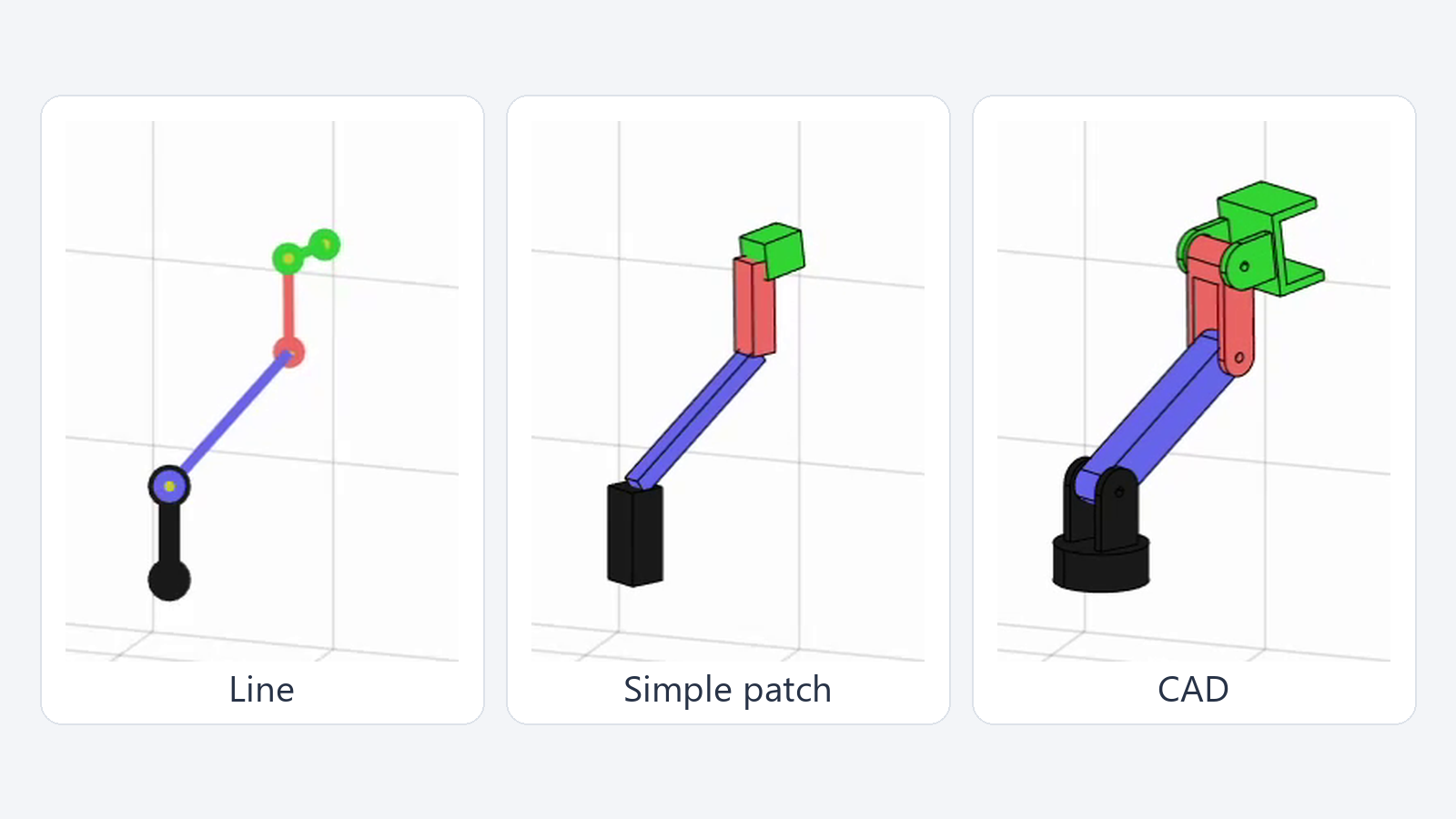
The same joint motion can be visualized using lines, simple patches, and CAD geometry.
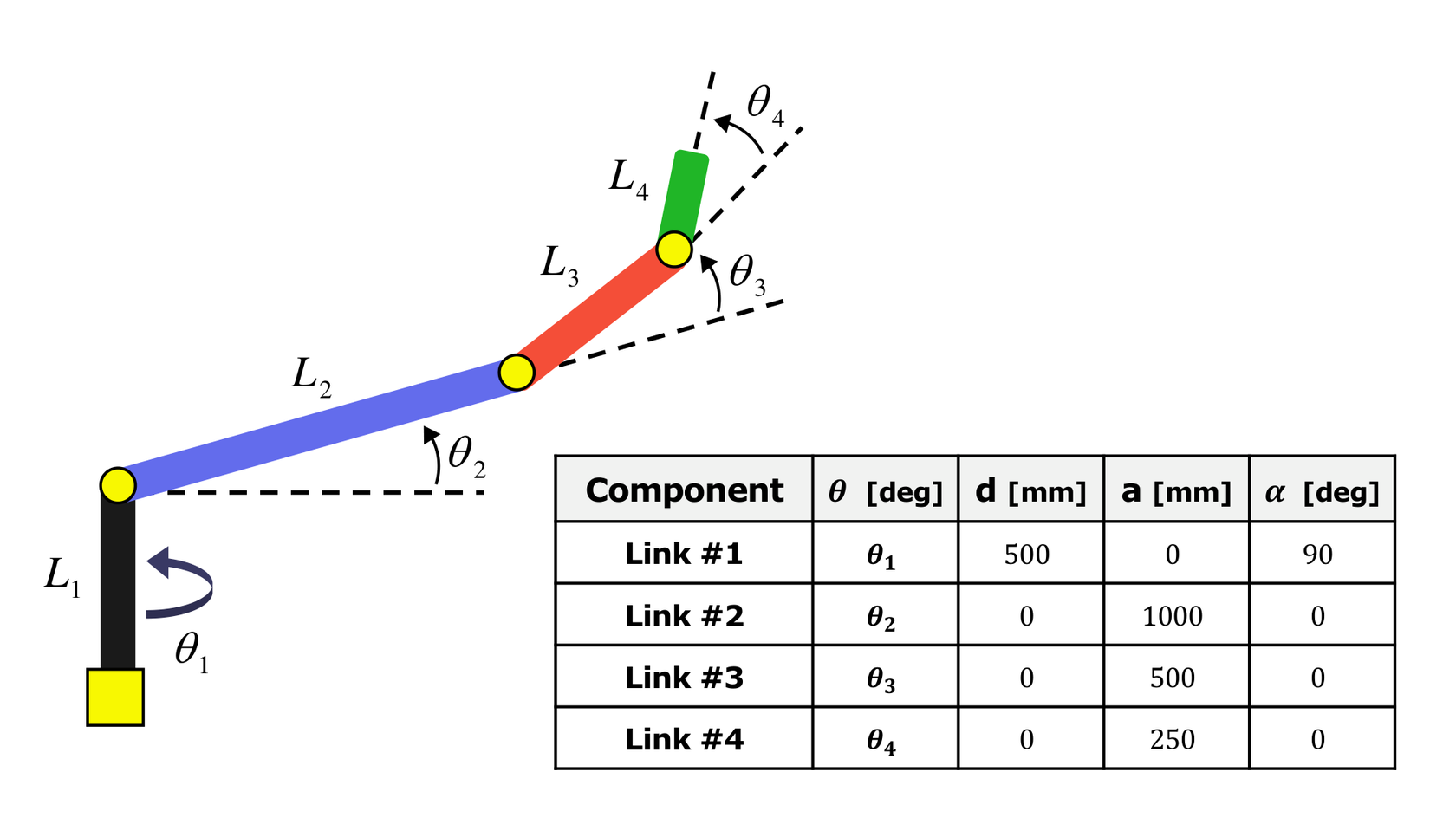
The example below comes from my 2024 SSHS Lab seminar. It animates a four-link robotic arm with prescribed joint angles, then uses the same motion for line, simple patch, and CAD representations.
Setup and Files
The example uses MATLAB graphics for the line and simple-patch models. The CAD sections also require Partial Differential Equation Toolbox for importGeometry, scale, and pdegplot. Video export uses VideoWriter with the MPEG-4 profile.
Download the example files and extract the ZIP with an AES-compatible application such as 7-Zip.
Keep the main script, helpers, and STEP files in this structure:
Robotic_Arm_MATLAB_Animation/
  Robot_Arm_Simulation.m
  MATLAB_Function/
    PlotSetting.m
    ImportRobotArmPatchData.m
    ImportRobotArmCAD.m
  Input/
    Link1.stp
    Link2.stp
    Link3.stp
    Link4.stp
Open Robot_Arm_Simulation.m and run the complete script. From the folder containing the example, the same operation is:
run('Robotic_Arm_MATLAB_Animation/Robot_Arm_Simulation.m')The script finds its inputs relative to its own location and creates 01_MATLAB for the output videos. Running it again replaces videos with the same names. Keep the figure sizes fixed during capture.
PlotSetting creates a figure and axes with common styling. ImportRobotArmPatchData supplies the simplified link shapes. ImportRobotArmCAD reads the four STEP files and returns their surface and edge coordinates. The following code fragments show the main operations; the complete script includes the ordered animation loops.
Initial Conditions and Joint Motion
The arm has four rotational degrees of freedom and link lengths of 500.00, 1,000.00, 500.00, and 250.00 mm. In the initial pose, the first link rises along +Z and the remaining links extend along +X. All joint angles start at zero.
link_num = 4;
L = [500, 1000, 500, 250]; % [mm]
linkColor = {[0.1, 0.1, 0.1], [0.4, 0.4, 0.92], ...
             [0.92, 0.4, 0.4], [0.2, 0.84, 0.2]};

videoFrame = 30; % [frames/s]
simTime = 10;    % [s]
t = linspace(0, simTime, simTime*videoFrame + 1);
t_num = numel(t);

theta1 = deg2rad(60*sin(2*pi*(1/t(end))*t));
theta2 = deg2rad(50*sin(2*pi*(0.5/t(end))*t));
theta3 = deg2rad(60*sin(2*pi*(0.75/t(end))*t));
theta4 = deg2rad(-90*sin(2*pi*(0.75/t(end))*t));
del_theta = [0, diff(theta1); 0, diff(theta2); ...
             0, diff(theta3); 0, diff(theta4)]; % [rad] Increment per sample
These angle histories prescribe the motion; the example does not solve forces or equations of motion. diff(theta) gives the angular increment between successive samples, not angular velocity. MATLAB’s rotate command takes degrees, so each increment is converted with rad2deg before it is applied.
The first joint rotates about world +Z. The other three joints rotate about a common direction that follows the first joint’s yaw:
pitchAxis = [sin(theta1(t_idx)), -cos(theta1(t_idx)), 0];Here, t_idx is the current sample in the animation loop. At zero yaw, this axis is −Y; a positive pitch rotates a link from +X toward +Z. Each joint has its own pivot even though the three pitch axes are parallel.
Line Geometry
A line joins two endpoints and provides a simple way to establish the joint positions. The five initial points below define the base, three intermediate joints, and the arm’s endpoint:
p = [0, 0, 0;
     0, 0, L(1);
     L(2), 0, L(1);
     sum(L(2:3)), 0, L(1);
     sum(L(2:4)), 0, L(1)];
[Fig1, ~] = PlotSetting(1000, 800);
axis equal;
axis([-2500, 2500, -2500, 2500, -1000, 3000]);
view([20, 15]);
linkLine = cell(1, link_num);
for link_idx = 1:link_num
    endpoints = p(link_idx:link_idx + 1, :);
    linkLine{link_idx}.geo = line(endpoints(:, 1), ...
        endpoints(:, 2), endpoints(:, 3), ...
        'Color', linkColor{link_idx}, 'LineWidth', 5, 'Marker', 'o');
endThe complete script animates these lines first and stores their endpoint coordinates at every sample. The patch and CAD stages reuse those coordinates as joint pivots. Run the line stage before the later representations; they depend on this position history.
Simple Patch Geometry
A patch defines a surface through vertices and faces. Vertices contain point coordinates; each face lists the indices of the vertices around its boundary. ImportRobotArmPatchData describes each link as a rectangular solid, with eight vertices and six faces, and places it in the same initial assembly frame as the line model.
[Patch_Faces, Patch_Vertices] = ImportRobotArmPatchData;
[Fig2, ~] = PlotSetting(1000, 800);
axis equal;
axis([-2500, 2500, -2500, 2500, -1000, 3000]);
view([20, 15]);
linkPatch = cell(1, link_num);
for link_idx = 1:link_num
    linkPatch{link_idx}.geo = patch( ...
        'Faces', Patch_Faces{link_idx}, ...
        'Vertices', Patch_Vertices{link_idx}, ...
        'FaceColor', linkColor{link_idx}, 'EdgeColor', [0, 0, 0]);
endVisible width and depth make link orientation and overlap easier to read. The shapes remain simple enough to define directly in MATLAB. If the link lengths change, update the helper’s dimensions and offsets as well as L; changing the line lengths alone will not resize the patches.
CAD Geometry
The CAD representation replaces the rectangular shapes with the modeled parts. The supplied STEP files already share the arm’s initial assembly frame. ImportRobotArmCAD imports each file, scales its coordinates for this millimetre-based example, and extracts the surface patch and edge lines by graphics type.
project_dir = fileparts(mfilename('fullpath'));
input_dir = fullfile(project_dir, 'Input');
[CADGeo_Faces, CADGeo_Vertices, CADGeo_Lines] = ...
    ImportRobotArmCAD(link_num, input_dir);
[Fig3, ~] = PlotSetting(1000, 800);
axis equal;
axis([-2500, 2500, -2500, 2500, -1000, 3000]);
view([20, 15]);
linkCAD1 = cell(1, link_num);
for link_idx = 1:link_num
    linkCAD1{link_idx}.geo = patch( ...
        'Faces', CADGeo_Faces{link_idx}, ...
        'Vertices', CADGeo_Vertices{link_idx}, ...
        'FaceColor', linkColor{link_idx}, 'EdgeColor', 'none');
    edges = CADGeo_Lines{link_idx};
    linkCAD1{link_idx}.line = line(edges.XData, edges.YData, ...
        edges.ZData, 'Color', [0, 0, 0], 'LineWidth', 0.1);
end
The helper uses a scale factor of 1,000 for these imports. For another CAD model, check a known dimension and its initial placement before applying a scale factor.
Line geometry shows connectivity and motion with little preparation. Simple patches add width and depth. CAD geometry shows the modeled part shape, but requires consistent units and assembly placement. These differences are visible at the same recorded pose:
Joint Updates and Video Export
At each sample, apply the angle changes in joint order. Joint 1 moves all four links; joint 2 moves links 2–4; joint 3 moves links 3–4; joint 4 moves only link 4. A joint’s pivot must move with the upstream links.
For example, this operation inside the line-stage loop rotates links 2–4 about joint 2:
pitchAxis = [sin(theta1(t_idx)), -cos(theta1(t_idx)), 0];
pivot = [linkLine{2}.geo.XData(1), ...
         linkLine{2}.geo.YData(1), linkLine{2}.geo.ZData(1)];
for link_idx = 2:link_num
    rotate(linkLine{link_idx}.geo, pitchAxis, ...
           rad2deg(del_theta(2, t_idx)), pivot);
end
The patch loops use the same angular increments and the stored line-model pivots. The CAD loops rotate both the surface patch and its edge lines, so the edges remain attached to the part. Each representation starts from the initial geometry rather than from the preceding animation’s final pose. For a nonzero starting angle, first place all geometry in that starting pose; a leading zero increment alone will not do so.
For each representation, the script opens a VideoWriter before the time loop. After applying all joint updates for a sample, it redraws the figure and captures the frame. The writer closes when the loop finishes. For the line figure, the calls are:
% Before the time loop:
output_dir = fullfile(project_dir, '01_MATLAB');
if ~isfolder(output_dir)
    mkdir(output_dir);
end
video = VideoWriter(fullfile(output_dir, ...
    'MATLAB_Line_Animation.mp4'), 'MPEG-4');
video.FrameRate = videoFrame;
open(video);

% Inside the time loop, after the joint updates:
drawnow;
writeVideo(video, getframe(Fig1));

% After the time loop:
close(video);
The default input contains 301 samples from 0 to 10 seconds, exported at 30 frames/s. The output folder contains the line, simple-patch, default CAD, and revised CAD videos. The revised CAD view adds lighting, a ground surface, and a moving camera; use the fixed views when comparing the three geometry representations.
Blender and KeyShot
Blender extends the workflow when materials, lighting, and the surrounding scene need more control. In the seminar example, Python prepares the CAD scene and applies motion data transferred from MATLAB.
The KeyShot example presents the assembly through an exploded sequence. Translations, rotations, and keyframes separate and reposition the parts to show how they fit together. It is a separate assembly animation, not a replay of the MATLAB joint-angle histories.