Python ProcessNet connects external Python scripts to RecurDyn model objects.
Small utility functions keep model setup and repeated edits in one place. The examples use an external Python script.
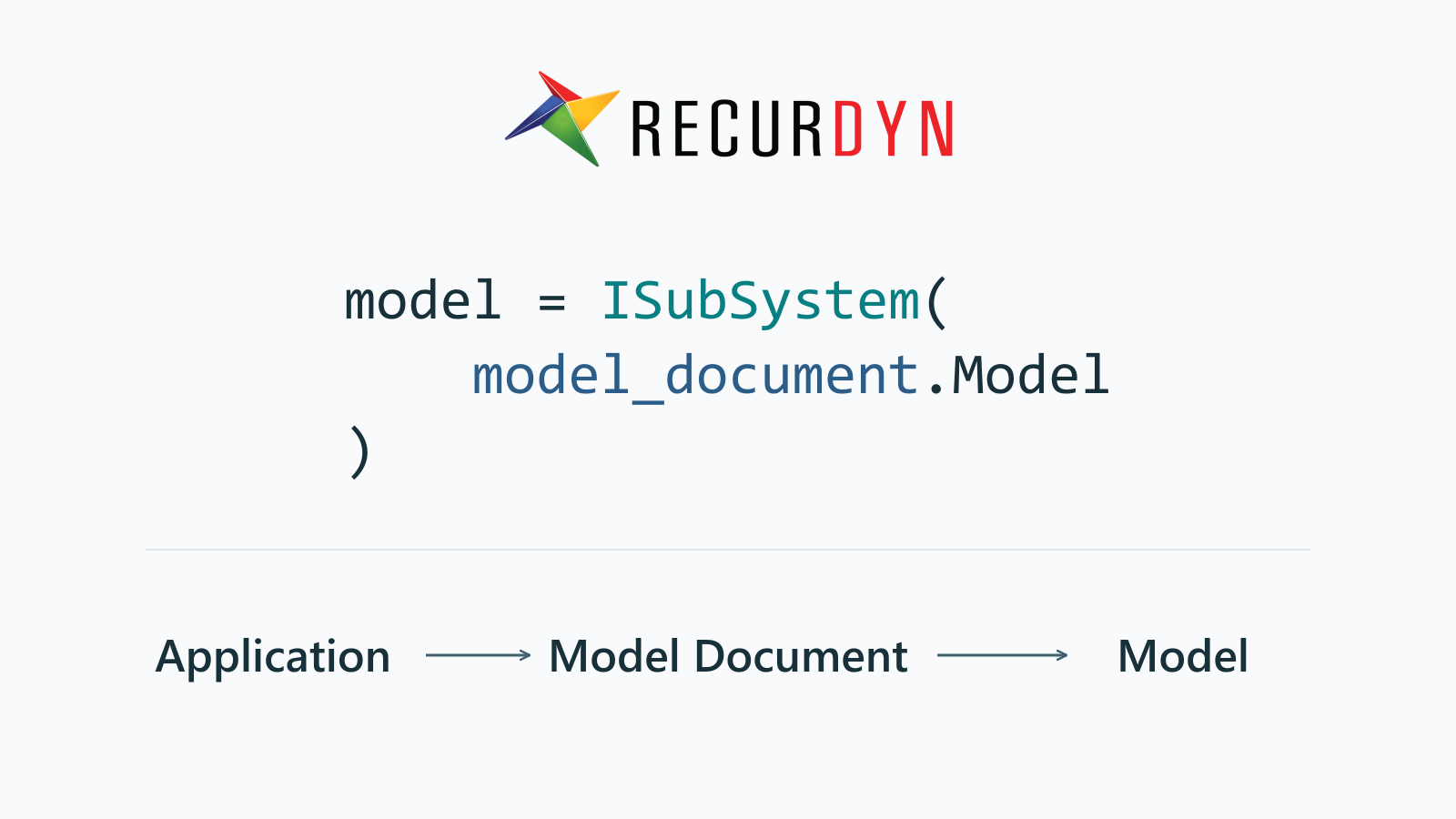
Required Environment
Prepare a RecurDyn installation that opens the intended model normally, a Python interpreter, and the Python package supplied with RecurDyn. The package uses Windows COM to communicate with the application. COM is the Windows interface through which one program accesses objects provided by another.
Install the dependencies listed in the package’s own requirements file. Run the following command with the Python interpreter that will execute the script, replacing the installation-folder placeholder:
python -m pip install -r "<RecurDyn install folder>\Bin\Python\Lib\recurdyn\requirements.txt"The required packages include pywin32. FunctionBay documents this setup in its Python installation guide.
Interpreter and Package Paths
The interpreter selected in the editor should be the same one used to install dependencies and run the script. This command identifies the executable used by the current terminal:
python -c "import sys; print(sys.executable)"RecurDyn’s Python package is under Bin\Python\Lib inside the installation folder. Add that directory to the script’s import path before importing recurdyn. A project-specific setup can use an environment variable for the installation folder:
$env:RECURDYN_INSTALL_DIR = "C:\path\to\RecurDyn"Replace the example path with the actual installation folder. This environment variable applies to the current PowerShell session and programs launched from it. The following code then locates the supplied library:
import os
import sys
from pathlib import Path

recurdyn_lib = (
    Path(os.environ["RECURDYN_INSTALL_DIR"])
    / "Bin" / "Python" / "Lib"
)
if not (recurdyn_lib / "recurdyn").is_dir():
    raise FileNotFoundError(recurdyn_lib)

sys.path.insert(0, str(recurdyn_lib))

import recurdyn

print(recurdyn.__file__)
The printed path shows which package was imported. Run this check in a fresh Python process after changing the path. An editor’s code-completion path is a separate setting: it helps the editor find API definitions, while the running interpreter must also be able to import the package.
Modeling Utilities
Keep the path setup and the following functions in one Python file. The functions separate model acquisition, input data and document updates:
Initialize: Open the named model and return its objects, project paths and reference frames.ValidationCheckAndUpateModelDocument: Validate the supplied document, refresh its display and mark it as modified.Dispose: Complete the document update and add an undo-history point.ReadInputData: Read a whitespace-separated numerical file into Python lists.CreateMotionExpressionWithCSV: Create or update a spline and an expression that evaluates it.
FunctionBay’s script creation guide also describes the supplied Bin\Python\ProcessNetTemplate.py template.
Model Initialization
Initialize reads a model name from a small configuration file and opens the corresponding .rdyn file. Use this project layout, replacing ModelName with the actual model name:
project/
  scripts/
    Modeling_Utils.py
  Simulation_Model/
    Current_RDModel_Name.dat
    ModelName/
      ModelName.rdyn
      Input/
      Simulation_Results/
The first line of Current_RDModel_Name.dat contains ModelName, without the .rdyn extension. The script resolves the project folder from its own location, so launching it from a different terminal folder does not change these paths.
Open one RecurDyn session before running the script. GetActiveObject obtains that running application; OpenModelDocument opens the configured file. A missing file, failed connection or absent returned document stops initialization. The function does not create a replacement model.
from win32com.client import GetActiveObject
from recurdyn.ProcessNet import (
    IApplication,
    IExpression,
    IModelDocument,
    IReferenceFrame,
    ISpline,
    ISubSystem,
)


def Initialize():
    workingFolder = Path(__file__).resolve().parent.parent
    simulationFolder = workingFolder / "Simulation_Model"
    nameFilePath = simulationFolder / "Current_RDModel_Name.dat"
    with nameFilePath.open("r", encoding="utf-8") as nameFile:
        simModelName = nameFile.readline().strip()
    if not simModelName:
        raise ValueError("The model name is empty.")

    simModelFolder = simulationFolder / simModelName
    inputFolder = simModelFolder / "Input"
    simResultsFolder = simModelFolder / "Simulation_Results"
    RDModelPath = simModelFolder / f"{simModelName}.rdyn"
    if not RDModelPath.is_file():
        raise FileNotFoundError(RDModelPath)

    app = GetActiveObject("RecurDyn.RDApplication")
    application = IApplication(app.RecurDynApplication)
    opened_document = application.OpenModelDocument(str(RDModelPath))
    if opened_document is None:
        raise RuntimeError(f"Could not open model: {RDModelPath}")

    modelDocument = IModelDocument(opened_document)
    model = ISubSystem(modelDocument.Model)
    refFrame1 = IReferenceFrame(modelDocument.CreateReferenceFrame())
    refFrame2 = IReferenceFrame(modelDocument.CreateReferenceFrame())

    return (
        simModelName,
        application,
        modelDocument,
        model,
        str(inputFolder),
        str(simResultsFolder),
        str(RDModelPath),
        refFrame1,
        refFrame2,
    )
The function returns nine values. application provides application-level operations; modelDocument provides document operations such as validation and display updates; model provides access to the subsystem’s entities. The remaining values identify the model, input and result paths, and two reference-frame objects for later modeling operations. A reference frame defines a position and orientation used to place or relate entities.
The input and result paths follow the folder layout above; Initialize does not create those folders. It keeps the document returned by OpenModelDocument, rather than selecting whichever document happens to be active afterward.
Validation and Finalization
Call ValidationCheckAndUpateModelDocument after changing model entities. It stops if validation fails; otherwise, it refreshes the viewport and database tree and returns the same document.
def ValidationCheckAndUpateModelDocument(modelDocument: IModelDocument):
    # Keep the original function name for existing callers.
    if modelDocument is None:
        raise ValueError("A model document is required.")
    if not modelDocument.Validate():
        raise RuntimeError("Model validation failed.")

    modelDocument.Redraw()
    modelDocument.UpdateDatabaseWindow()
    modelDocument.SetModified()
    return modelDocument


def Dispose(application: IApplication, modelDocument: IModelDocument):
    ValidationCheckAndUpateModelDocument(modelDocument)
    modelDocument.SetUndoHistory("Python ProcessNet")
    return application, modelDocument
Redraw() updates the viewport, and UpdateDatabaseWindow() updates the entity tree. SetModified() marks the document as changed. Dispose performs these steps and adds an undo-history point through SetUndoHistory(); it returns the application and document for subsequent use. It operates on the supplied document even if another document has become active. Neither function saves the model or closes RecurDyn.
Numerical Input Files
ReadInputData reads numerical values separated by spaces or tabs. With partName=None, it reads directly from inputFolder; otherwise, it reads from that part’s subfolder. dataPath is the filename or relative path within that folder.
def ReadInputData(inputFolder, partName, dataPath):
    folder = Path(inputFolder)
    if partName is not None:
        folder /= partName
    file_path = folder / dataPath

    with file_path.open("r", encoding="utf-8") as data_file:
        return [
            [float(value) for value in line.split()]
            for line in data_file
        ]
The result is a list of rows, each containing Python floating-point values. For example, a file containing the following numbers produces [[1.0, 2.0, 3.0], [4.0, 5.0, 6.0]]:
1.0 2.0 3.0
4.0 5.0 6.0
This reader expects numerical tokens without headers or comments. It does not interpret column meanings, convert units or enforce a fixed number of columns. Define the layout, units and reference frame for each input before using its values in the model. Comma-separated spline data uses the separate function below.
CSV Motion Expressions
CreateMotionExpressionWithCSV uses a CSV file to create two named entities: a spline, SP_<entityName>, and an expression, EX_<entityName>. If the names already exist, it updates their file path and expression text.
The CSV must already be prepared for RecurDyn’s spline import. Use its required file layout and confirm that the independent variable, data units and time range match the intended motion. This function passes the file to RecurDyn; it does not parse columns or convert their values.
def CreateMotionExpressionWithCSV(
    model: ISubSystem, inputFolder, partName, entityName, dataPath
):
    csv_path = Path(inputFolder) / partName / dataPath
    if not csv_path.is_file():
        raise FileNotFoundError(csv_path)

    spline_name = f"SP_{entityName}"
    existing_spline = model.GetEntity(spline_name)
    if existing_spline is None:
        spline = ISpline(
            model.CreateSplineWithFile(spline_name, str(csv_path))
        )
    else:
        spline = ISpline(existing_spline)
        spline.FileName = str(csv_path)

    expression_name = f"EX_{entityName}"
    expression_text = f"AKISPL(time, 0, {spline_name}, 0)"
    existing_expression = model.GetEntity(expression_name)
    if existing_expression is None:
        expression = IExpression(
            model.CreateExpression(expression_name, expression_text)
        )
    else:
        expression = IExpression(existing_expression)
        expression.Text = expression_text

    return model, expression
Here, partName selects a subfolder of inputFolder, and dataPath names the CSV within it. Reserve the SP_ and EX_ names for the intended spline and expression so that another entity does not occupy either name.
AKISPL(time, 0, spline_name, 0) evaluates an Akima spline at the current simulation time. The second argument is zero for a spline with one independent variable; the final zero requests the interpolated value rather than a derivative. The returned value takes its meaning from the spline data and the motion using it.
IExpression.Text contains the formula as a string. A motion object’s Expression property instead receives the resulting IExpression object. The helper returns (model, expression); assigning that expression to the intended motion is a separate model operation.
Script Checks
Place the entry point after all five function definitions. Unpack the initialization result, add the required input-reading and model operations, then finalize the same document:
if __name__ == "__main__":
    (
        simModelName,
        application,
        modelDocument,
        model,
        inputFolder,
        simResultsFolder,
        RDModelPath,
        refFrame1,
        refFrame2,
    ) = Initialize()

    # Read inputs and modify model entities here.
    application, modelDocument = Dispose(application, modelDocument)
Run the file from the terminal where RECURDYN_INSTALL_DIR is set, or configure that variable in the editor’s run environment. Work on a model copy while developing and keep the model’s units. After each small edit, check its effect in RecurDyn before adding the next operation.
| Observation | Check |
|---|---|
recurdyn cannot be imported | The selected interpreter and its Bin\Python\Lib search path |
win32com cannot be imported | The package requirements installed in that same interpreter |
| The application connection fails | Whether the intended RecurDyn application is running and accessible |
| The configured model cannot be opened | The model name, the resolved .rdyn path and the returned document |
| A numerical file cannot be read | Its resolved path and whitespace-separated numerical contents |
| A spline or expression cannot be created | The CSV’s import format, the entity names and the expression text |
| The viewport or tree does not reflect an edit | The validation result and the document update calls |