PDF Annotation and Source Checking
YANG Paper Reader is a Windows application for reading and annotating research PDFs. Researchers and students can inspect text, tables and equations extracted on their PC, ask about a passage through Claude Code or Codex, and follow the answer back to its source page.
Visit the official repository for the manual and installation guide. Download the Windows installer from the 0.2.0 release page.
Parsing can misread tables or equations. An AI answer can misinterpret a passage even when the quotation matches. The Reader opens PDFs of up to 200 pages. Paper Summary and Auto Highlight have a 48-page limit. With automatic summaries enabled, opening a paper can send its text to the reader’s AI provider.
Before Opening a Paper
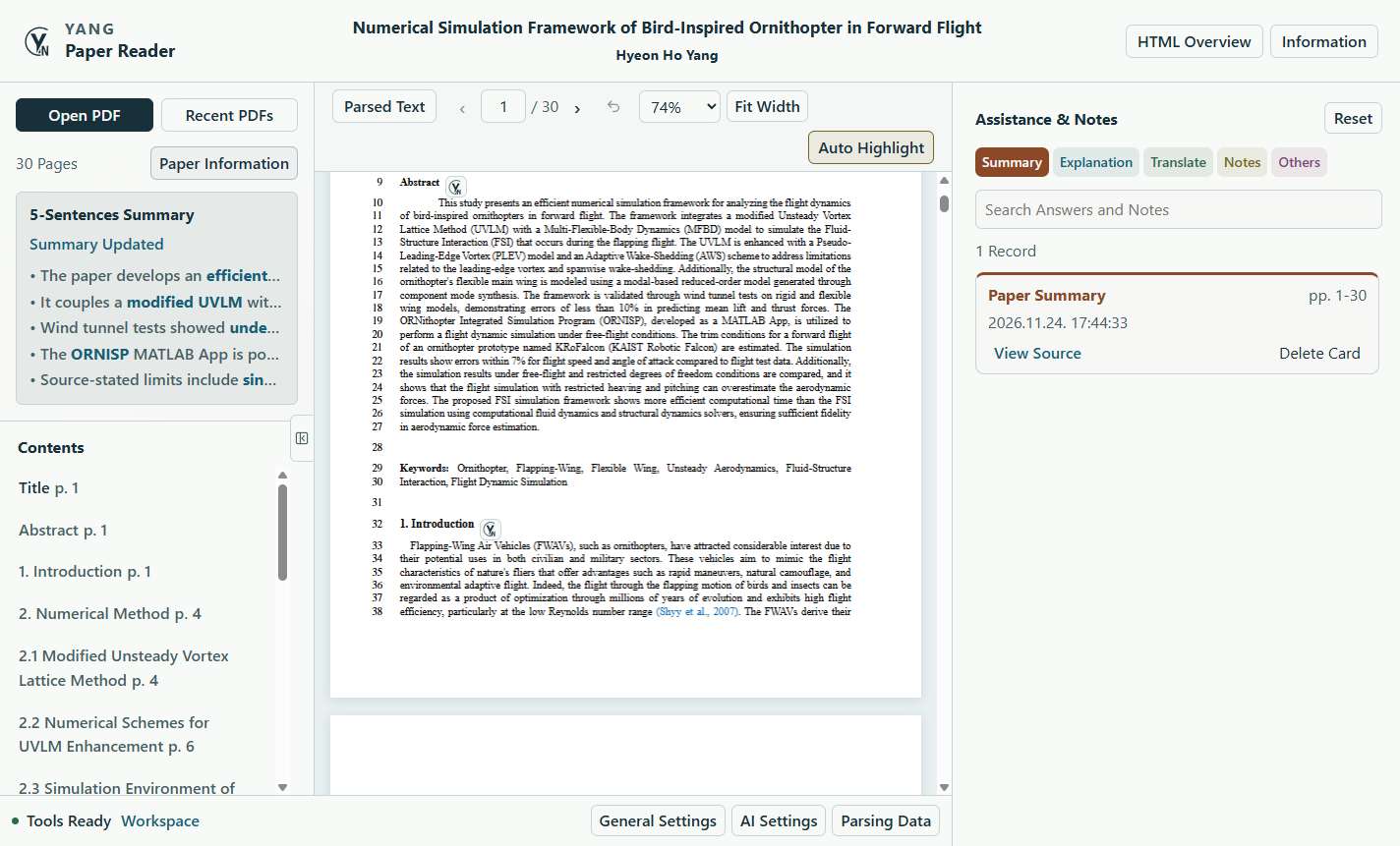
AI requests use your signed-in Claude Code or Codex account. By default, opening a new PDF can send text from every page for a Paper Summary. After parsing, the summary update can also send selected images. To prevent both automatic requests, turn off Start the Paper Summary by itself in General Settings before opening the PDF.
The Reader also sends bibliographic details to public services for Paper Information. That lookup runs separately from the automatic summaries. Data use
Reading and Annotating a Paper
The left panel shows five sentences from the Paper Summary. The summary card in Assistance & Notes, to the right of the PDF, opens the full summary. Use Contents to jump to a section or Find in PDF to locate a term. Highlighting a passage or attaching a note sends no AI request.
On a selected passage, Translate sends the text and an image of the selection to the AI provider. Ask sends the question and selection and can include surrounding text and images. Either action may request more material, including page images. Paper Information provides citations in BibTeX, APA, Vancouver and Harvard formats.
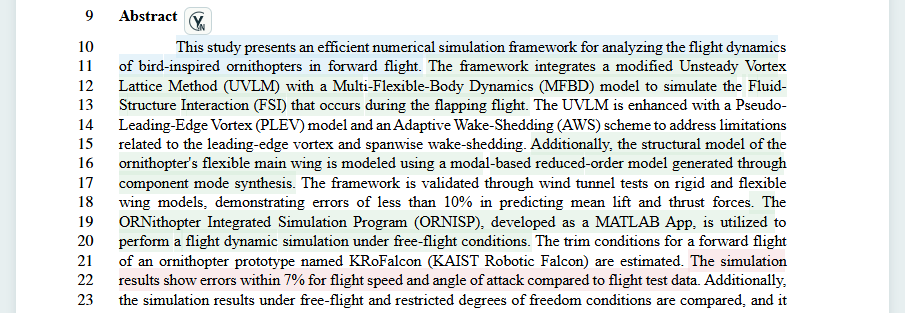
After parsing, Auto Highlight sends the full parsed text to the AI provider. It uses color to distinguish passages about novelty, methods and results.
After parsing, HTML Overview saves the contents, figures, tables, equations and latest completed paper summary for offline reading. Exporting the overview makes no AI request.
Checking an Answer Against the PDF
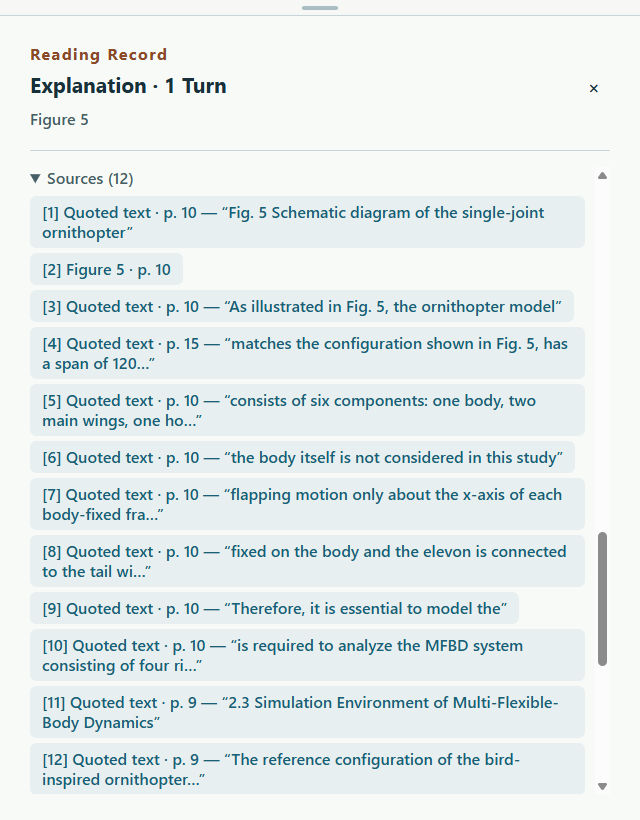
In Assistance & Notes, open an answer and expand Sources. Selecting a numbered quotation or figure reference takes you to its page. Check in the paper marks a quotation the Reader could not match to the text of that page. Even when the words match, check the AI’s interpretation, translation and numbers against the PDF. User manual
Requirements
Local parsing uses the first visible NVIDIA GPU and has no CPU fallback. For AI assistance, sign in to your own account in one of the command-line tools below.
| Component | Requirement for 0.2.0 |
|---|---|
| Operating system | 64-bit Windows 10 version 1809 or later, or Windows 11 (x64) |
| Python | 64-bit Python 3.12 |
| GPU and driver | NVIDIA GPU with compute capability 8.0 or higher and bfloat16 support. NVIDIA driver 576.02 or newer. |
| AI tool | Claude Code 2.1.330 or newer, or Codex 0.171.0 or newer |
| Memory and disk | 4 GB RAM. About 12 GB free for the program and parsing runtime, plus temporary space for downloads and extraction. |
| Network | Internet access during setup and for AI requests |
The installation guide recommends at least 12 GB of GPU memory, the smallest configuration reported by the maintainers of PaddleOCR-VL, the PDF parser. The parsing packages in 0.2.0 have not been confirmed on GeForce RTX 50-series GPUs.
Using YANG Paper Reader
Install Python, the NVIDIA driver and your chosen AI tool first. Close any running copy of the Reader. The 0.2.0 release supplies the Windows installer and SHA256SUMS.txt. The installer and application are unsigned. Windows blocks them while Smart App Control is on.
In PowerShell, run the following commands from the 0.2.0 installation guide. The first downloads the versioned installer. The second starts it only if the file’s SHA-256 matches the published value.
Invoke-WebRequest -UseBasicParsing -Uri https://github.com/HHYang95/YANG_Paper_Reader_Public/releases/download/0.2.0/YANG_Paper_Reader_Setup_0.2.0.exe -OutFile .\YANG_Paper_Reader_Setup_0.2.0.exe
if ((Get-FileHash .\YANG_Paper_Reader_Setup_0.2.0.exe -Algorithm SHA256).Hash -eq '1c9af33648092dfcee6ab5122bd27225780feab22bd673f7cb0b3a84874ea4a1') { Start-Process .\YANG_Paper_Reader_Setup_0.2.0.exe } else { Write-Error 'The SHA-256 does not match. Do not run this file.' }- In Setup, read the license and choose the parsing runtime folder. The program installs for your Windows account without administrator rights.
- Read the checks on Requirements. On Ready to Install, confirm the runtime folder and whether setup will run at the end of installation. If you defer runtime setup, use Set Up Parsing Runtime from the Start menu later.
- Once the parsing runtime is ready, start YANG Paper Reader from the Start menu. Check Ready to Read, AI Settings and the automatic summary setting before opening a PDF.
Terms of Use
The application and its documentation are free for noncommercial research, teaching and learning. Commercial use requires separate permission. Application license
The main application source is private. The readable startup files remain under the application’s terms. The Setup script is available under AGPL-3.0-or-later. Third-party components retain their own licenses. Source availability